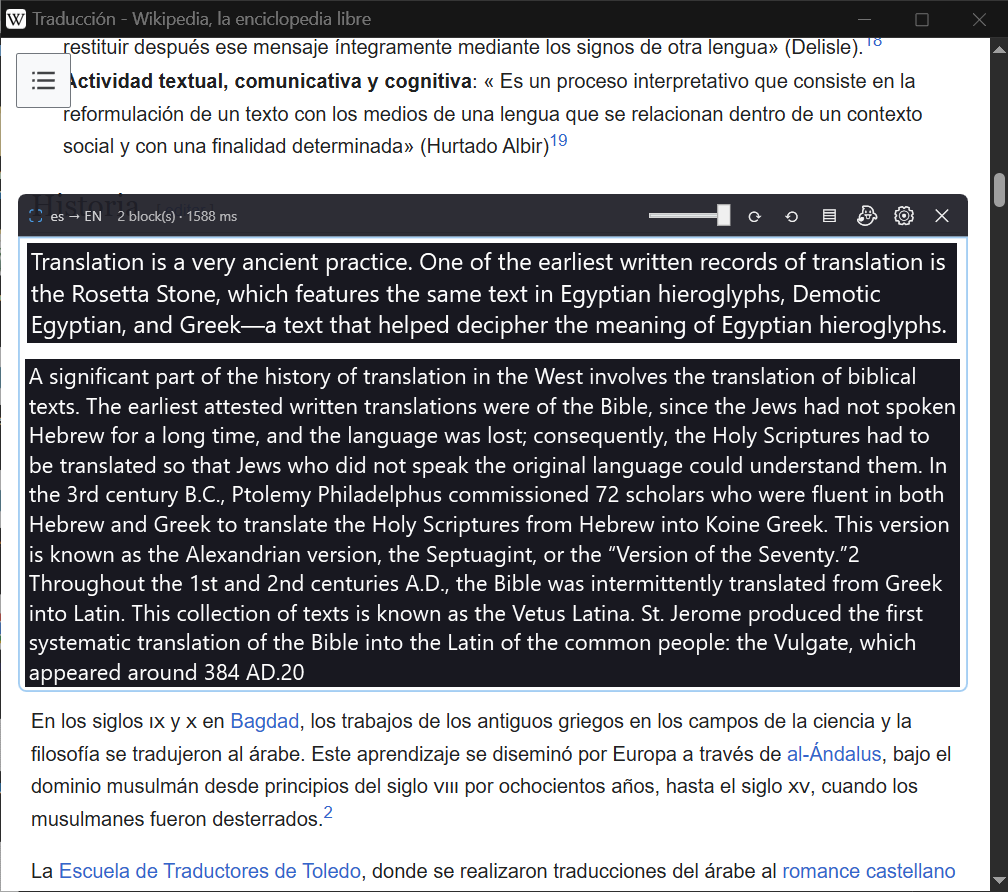
Drag a window over foreign text in a game, a PDF, a video or a website. Screen Translator reads what is underneath and draws the translation on top of the original, so the page keeps its layout.
DOWNLOAD FOR WINDOWSRelease notes and screenshotsWindows 10 (1809+) and 11. Installs for your user only, no admin rights needed.Copy-paste translation breaks on games, scanned PDFs, video and apps that won't let you select text. Screen Translator works on the pixels, so it works on all of them.
A game's chat and its quest log, a foreign-language PDF, a video with burned-in subtitles, a supplier's web shop. Keep the overlay up and it follows along.
An opt-in local connector (MCP) lets Claude Code or Codex read the text and image under the overlay. Off until you turn it on.
Run the installer. It installs for your user, needs no admin prompt, and updates itself when you exit.
Press Ctrl+Alt+S, choose DeepL, Google, Azure or your own LibreTranslate server, and set your language.
Drag the overlay over the foreign text and press Ctrl+Alt+R. Auto-refresh follows you as you scroll.
Over the original, in a side-by-side panel, or as hover tooltips. Ghost mode lets clicks pass through.
The layout staysEach block of text is translated and drawn back over the original, with the font sized to fit.
Your provider, your keyScreen text goes only to the translator you pick. API keys are encrypted with Windows DPAPI. With your own LibreTranslate server, nothing goes to the internet.
Idle when the screen isOn a still screen it uses almost no CPU and makes no translation calls. Each change is sent as one batched request.
| Screen Translator | Copy-paste translation | |
|---|---|---|
| Works on text you can't select | Yes: games, scans, video, any window | No |
| Where the translation appears | Over the original, side by side or as tooltips | In a separate box |
| Follows scrolling and new text | Yes, with auto-refresh | Copy and paste again |
| Choice of translator | DeepL, Google, Azure or LibreTranslate | Whichever site you open |
| Can run without a cloud service | Yes, with your own LibreTranslate server | No |
Windows 10 (version 1809 or later) or Windows 11. The installer is self-contained. Fullscreen-exclusive games can't be captured, so use borderless windowed mode; DRM-protected video captures as black.
Thirty common languages are in the menu, and you can type any other language code your translator supports. Arabic, Hebrew and Persian are drawn right to left. Text is read with the Windows OCR language packs, or Tesseract for languages Windows doesn't cover.
The download is free. Translations use your own key with the provider you pick; DeepL's free tier, for example, covers 500,000 characters a month.
The installer isn't code-signed yet, so SmartScreen shows a warning the first time. Choose "More info", then "Run anyway".
Yes. New versions download in the background and install when you exit. It never restarts on its own.
Octara Labs, a small software studio in Portugal.
One installer, no account. Bring a translator key and drag the overlay over the first thing you couldn't read.